 Stall
Stall
stream overlay
Put your stall on stream.
A card with one item and a QR, on your live video. Viewers scan, the shop opens, Cashtab signs. Nothing to click on the stream — a stream can’t be clicked.
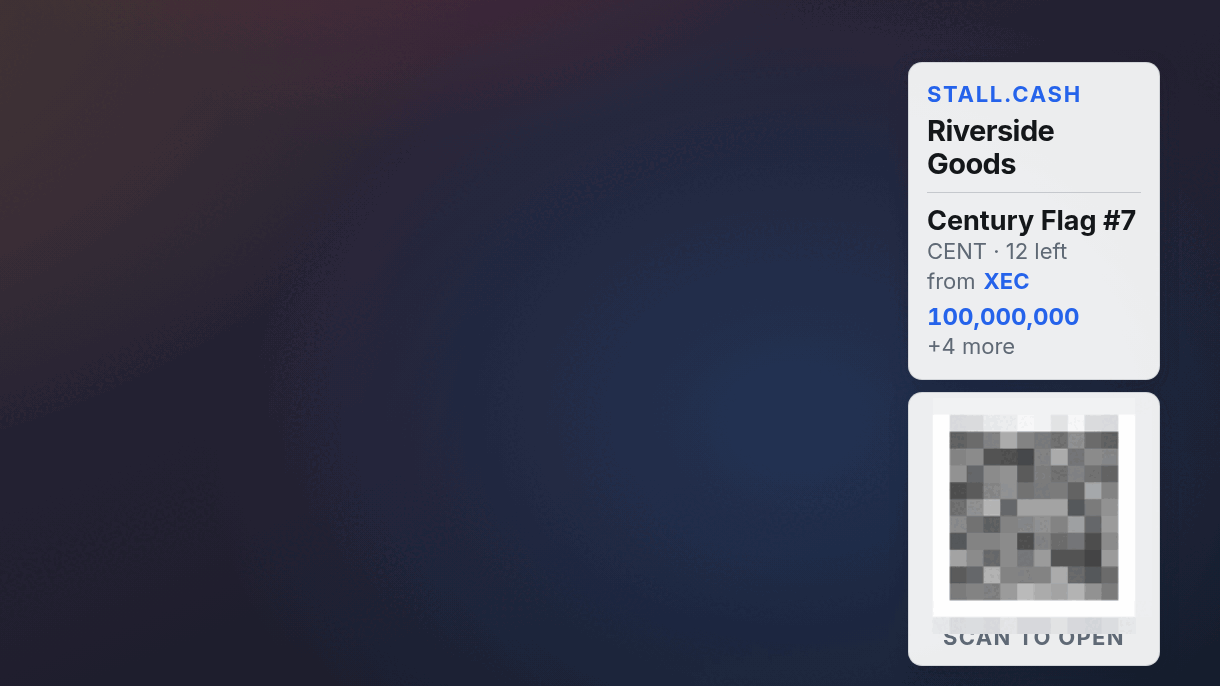
-
01
Open your stall → Studio → Stream overlay Pick where it sits and how the price shows.
-
02
Copy the link It carries your address and the settings. Nothing else.
-
03
Paste it into OBS as a Browser Source Turn off “Shutdown source when not visible” and “Refresh browser when scene becomes active”.
Two ways to add the source
Drop-in
1920 × 1080
The overlay sits in its own corner of the canvas.
Sticker
372 × 820 corner · 372 × 580 rail
Drag it, scale it — the QR scales with it. A vertical stream uses this.
Five things to know before you go live
Phone viewers can’t read any overlay.
A 1080p frame on a phone is a fifth of its size. Put the same stall link in your stream description or a pinned comment.
The QR scans from a monitor at 1080p.
Whether it scans for viewers watching at 720p is not measured. Scale the source up if your viewers are on phones.
“Rest, then show a price” goes quiet 3 seconds of every 8.
Pick “Always show a price” for a shop that should never rest.
Quote cards are opt-in.
Pick “Your quotes (paid to you)” under “Cards show” in Studio → Stream overlay — or add cards=quotes to the link by hand — and each card shows an item you have quoted on chain, paid to you directly, instead of an Agora listing. Quote in XEC for a stream you are not watching: the page converts a USD quote when someone scans it, and your own reconciliation still needs a rate.
Overlay stopped updating?
OBS shut the source down. Toggle the source’s visibility to bring it back.